
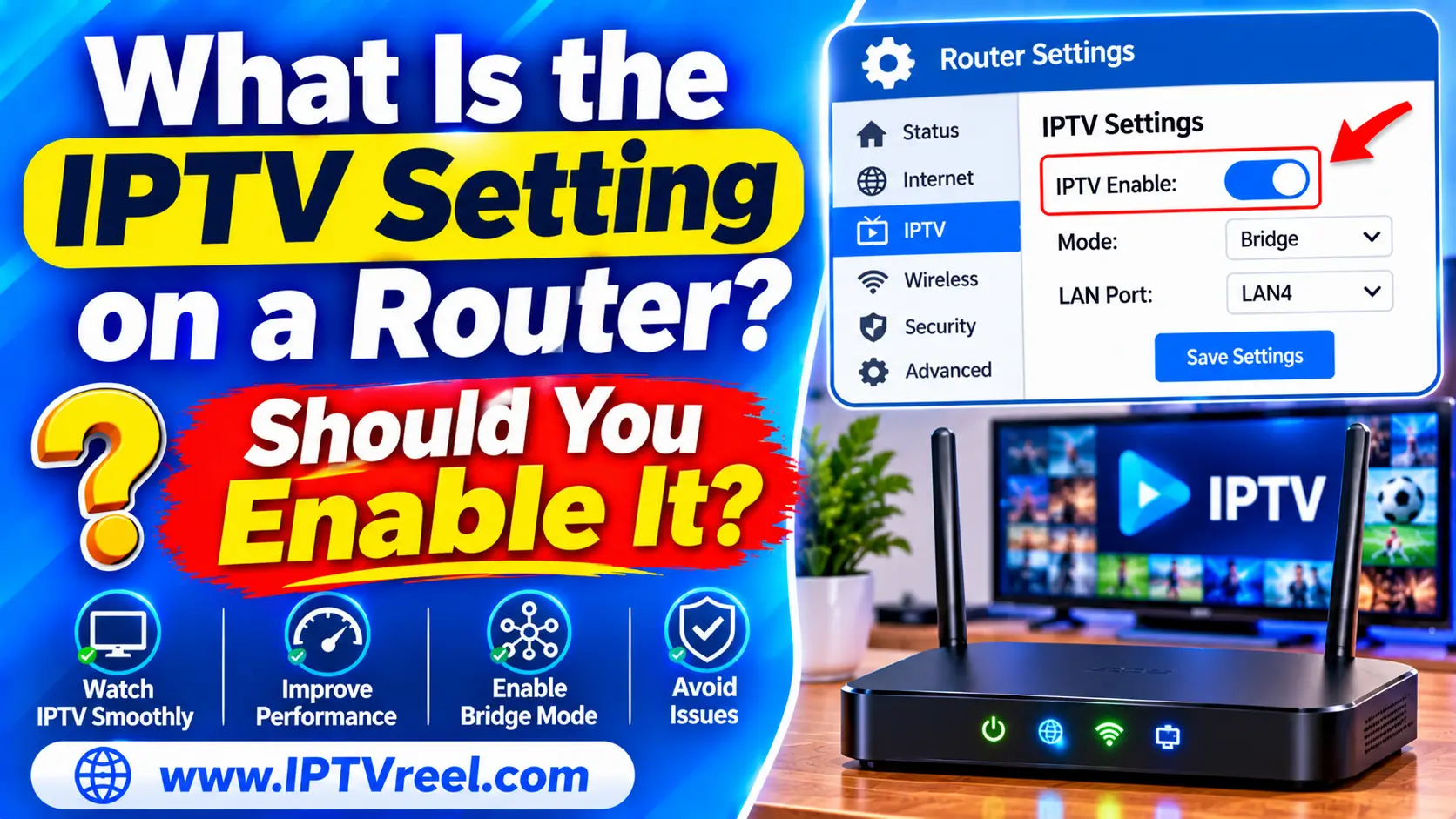
The IPTV setting on a router confuses almost everyone who finds it. It sounds like a switch for streaming apps, but it is not. This guide explains what the router IPTV option really does, when you should enable it, when you should leave it off, and how to fix common problems if your internet provider sells a TV service.
Quick answer
- The router’s IPTV option is for a TV service delivered by your internet provider to a set-top box, not for streaming apps on your phone, TV or Fire Stick.
- If you do not use a provider TV box, leave it at its default. Turning it on will not improve streaming.
- If you do use a provider TV box, follow your provider’s instructions exactly. They usually involve a VLAN number and a dedicated LAN port.
What does IPTV mean on a router?
IPTV stands for Internet Protocol television: TV delivered as data over an IP network. In general it covers a lot, including streaming apps (see IPTV on Wikipedia). On a router, however, the word has a narrow meaning. It refers to the special handling that some internet providers need for their own managed TV service, which usually reaches a dedicated set-top box.
That managed service often sends the same channel to many homes at once using multicast traffic. Routers need to be told how to pass that traffic to the right device, and that is what the IPTV setting configures.
What the router IPTV option usually changes
- IGMP proxy or IGMP snooping: IGMP is the protocol a device uses to join a multicast stream (see IGMP on Wikipedia). Proxy or snooping lets the router pass the stream only to the box that asked for it.
- VLAN tagging: some providers put TV traffic on its own VLAN number. The router must tag that traffic the same way.
- Bridge or dedicated LAN port: one LAN port may be set aside for the provider’s TV box so its traffic stays separate from your normal internet traffic.
The labels differ by brand. You may see “IPTV”, “IPTV mode”, “IGMP proxy”, “Bridge mode” or “VLAN for IPTV”.
Should you enable IPTV on your router?
| Your situation | What to do |
|---|---|
| You watch Netflix, YouTube or other streaming apps only | Leave the IPTV setting off or at default |
| You use an IPTV app on a Fire Stick, Android TV or phone | Leave it off. Apps use normal internet traffic |
| Your provider gave you a TV box and says to enable IPTV | Enable it exactly as the provider describes |
| You replaced the provider’s router with your own | Check the provider’s guide for your router, as TV may need a specific VLAN and port |
| You are not sure | Do not change it. Ask your provider or check the router manual |
How to set up IPTV on a router for a provider TV box
Settings screens differ, so use these steps as a map and follow your provider’s numbers.
- Find the provider instructions. Look for the VLAN ID, whether the IPTV traffic is tagged, and which LAN port the box should use.
- Log in to the router (often a page such as 192.168.0.1 or 192.168.1.1, printed on the router label).
- Open the IPTV or WAN section. It may be under Advanced, Network or Internet.
- Turn on IGMP proxy or snooping if the provider requires it.
- Enter the VLAN ID and assign the LAN port for the TV box.
- Save and restart the router and the TV box.
Common problems and fixes
- TV channels freeze or pixelate: multicast traffic may be flooding the network. Enable IGMP snooping, use a wired connection for the box, and check for firmware updates.
- The TV box does not get a picture after changing routers: the new router probably lacks the provider’s VLAN settings.
- Wi-Fi slows down when the TV box is on: keep the box on its dedicated LAN port and avoid sending its traffic over Wi-Fi.
- Streaming apps stopped working after enabling IPTV: the setting may be isolating a LAN port. Move the streaming device to another port or revert the change.
If your problem is a streaming app rather than a provider box, the router setting is not the cause. See how to fix IPTV buffering instead.
Router IPTV setting vs IPTV apps
Many people who search for the router option actually want to watch IPTV through an app. Those apps run over your normal internet connection and need no special router mode. Our guides to M3U player apps and M3U vs Xtream Codes vs portal explain what an app needs.
Frequently asked questions
What is the IPTV setting on a router?
It is an option that prepares the router for an internet provider’s managed TV service, usually through IGMP handling and VLAN settings for a set-top box.
Should I enable IPTV on my router?
Only if your provider’s TV box needs it. If you use streaming apps only, leave it at its default.
Will enabling IPTV on the router reduce buffering in my streaming app?
No. Streaming apps use ordinary internet traffic. For buffering, check your speed, Wi-Fi and the app itself.
What is IGMP proxy?
IGMP proxy passes multicast streams to devices that have asked to join them, so the stream does not flood every device on your network.
Is the router IPTV setting related to IPTV legality?
No. It is a network feature. Whether a service is legal depends on its licences. See The Legality of IPTV.
Summary
The IPTV option on a router is a network feature for provider TV boxes, not a streaming booster. Leave it alone unless your provider tells you to enable it, and follow their VLAN and port settings if they do. For streaming apps, work on your speed, Wi-Fi and player settings instead.